A newsletter is one of the few channels where a business owns both the list and the relationship with the customer. Even so, it often lives in a separate tool, with its own login, its own lists and its own idea of who has unsubscribed. In Corporate Panel you write your newsletter in the same place as your website, your email and your customer follow-up, and nothing has to be moved between systems.
One website at a time
You start by choosing the website you are working on. Campaigns, lists, campaign pages, sendouts and statistics belong to that website, and the sender list only shows addresses on the same domain. If you run more than one business or brand, this is what stops an offer from one of them going out with the sender and landing page of another.
Everything new starts as a draft. Drafts, templates and campaigns are kept apart, so you can try things out in a draft without touching anything that has already been sent. When it is ready, you save it as a campaign or as a template. A copy is made, and the original stays where it is.
Build the newsletter with blocks
The newsletter itself is put together from blocks. You have headings on three levels, body text, images, buttons, spacers and columns with one, two or three columns. At the top is a header with a background image or logo. Images come from the media library in the panel, and buttons take the colour, rounding and position that fit your brand.
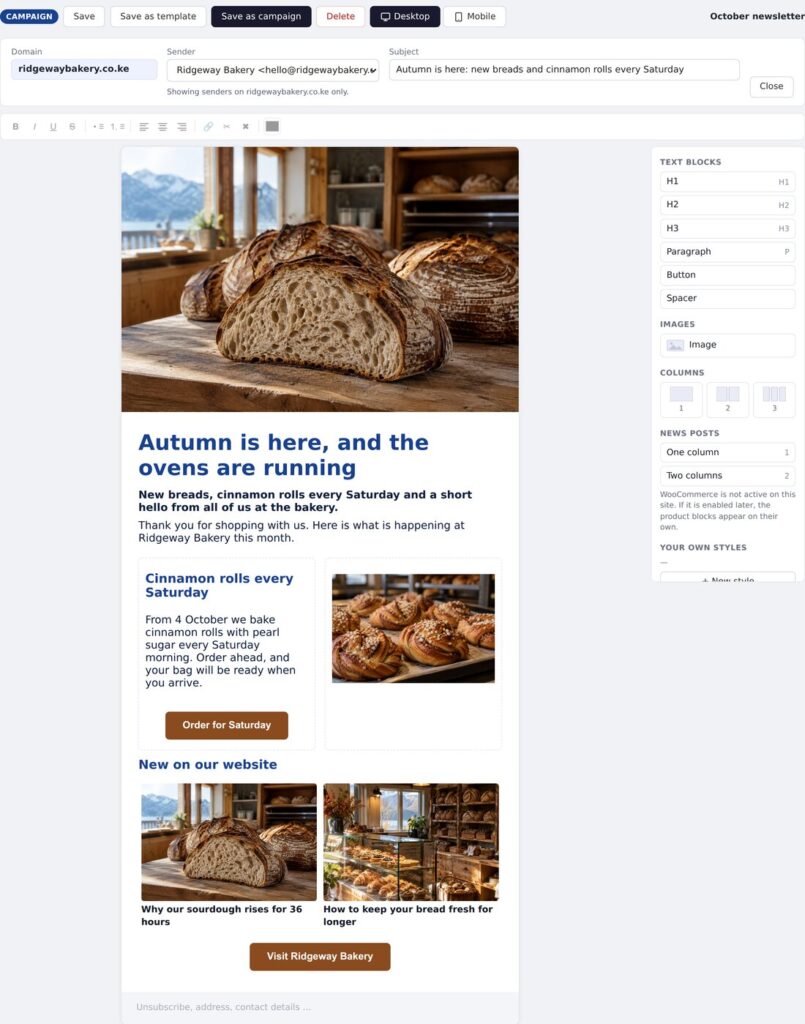
While you work, you switch between the desktop and mobile views. A block can be hidden on mobile or on desktop, for instance when two columns side by side become too cramped on a phone and you would rather show the content in a single column there. You write the subject and choose the sender at the top of the same screen, and everything is saved as a document you can open and change later.
News and products from your website
There is no need to copy articles into the newsletter. The news block pulls stories straight from your website, with image and title, in one or two columns. If you have written articles with AI Content, they can go straight into your next newsletter with the same image as on the website. If the website is an online shop, there are matching blocks for products, with image and price taken from the shop.
The lists are yours
Your recipients sit in lists that you own. You add addresses by hand, import them from a spreadsheet, bring them in from your CRM contacts, or let them come in through a sign-up form on your website. The sign-up module is created in the panel and embedded on the WordPress site without you having to open WordPress.
An import always adds and never replaces. Someone who has unsubscribed is not signed up again because the same address is imported once more. Addresses that cannot be delivered to are removed automatically as the bounce messages come in, so the list stays clean and your sender name keeps a good reputation with the email providers.
The campaign page is published on your website
A newsletter usually needs to lead somewhere. For each campaign you create a campaign page in the panel, with a header image, text and a form where readers can register interest, ask to be contacted or request a quote. The page is published on your WordPress website. Every sendout also has an unsubscribe page, and nothing goes out without it. Each recipient gets a personal unsubscribe link, and email programs that support one-click unsubscribe get that too.
The sendout freezes what was sent
When you send, you choose the campaign, list, sender, campaign page and unsubscribe page. Before anything goes out, the panel checks that everything fits together, and you can send a test to yourself first. The sendout itself goes out at a steady pace rather than all at once, because the big email providers react to sudden spikes from the same sender, and you can follow the progress while it runs. The moment the sendout starts, the subject, content, images and recipient list are frozen. You can keep editing the campaign afterwards without changing what was actually sent, and when someone asks what went out in October, you will find it exactly as it looked.
A sendout can also be placed in the calendar. You choose the date, time and time zone, and add several times if the same newsletter should go out at different points.
Figures you can trust
After the sendout you get a report for each campaign. At the top are four figures: how many are assumed delivered, how many opened, how many clicked and how many actually got in touch. Below, a result chain shows how the recipients fall away, from everyone you set out to reach to those who took action, and each percentage is shown next to the figure it is calculated from.
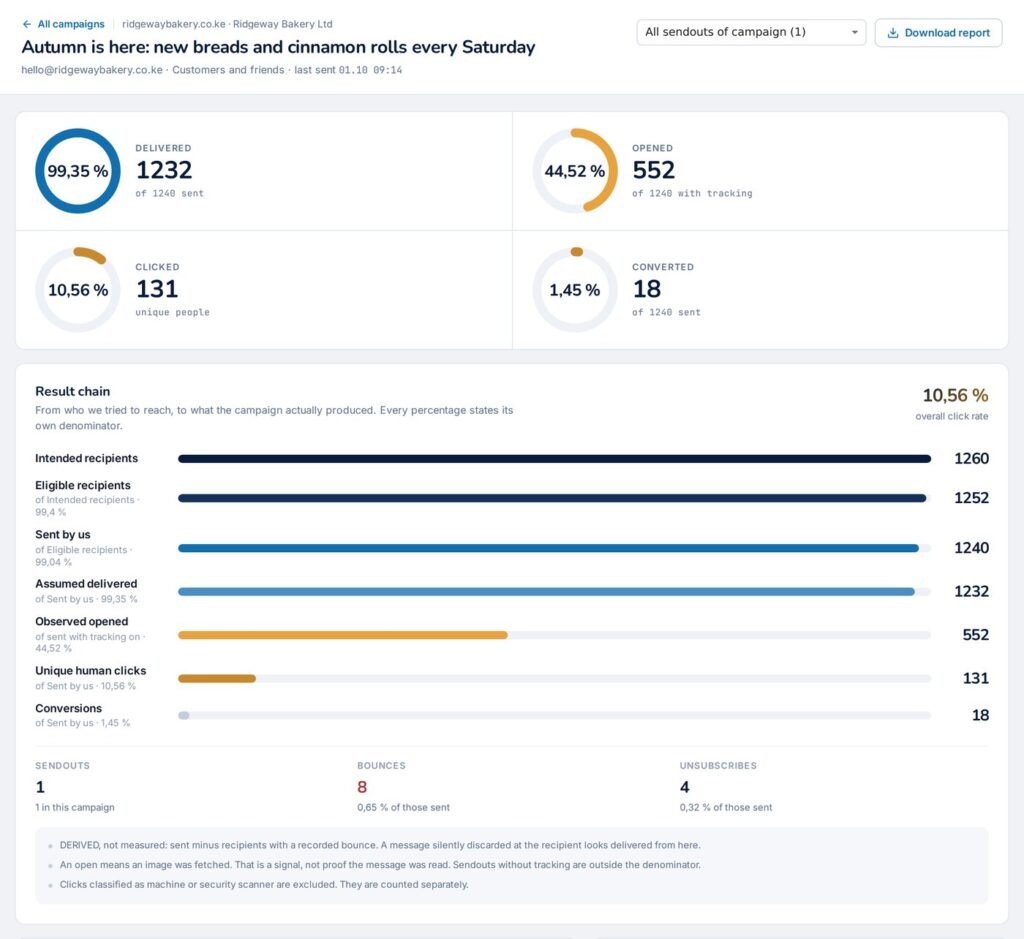
The report is also clear about what has been measured and what has been derived. An open means an image in the newsletter was fetched, and that is a signal, not proof that the newsletter was read. Clicks from security scanners, which many companies use to check links before an email is let through, are kept out and counted separately. You see bounces and unsubscribes, and clicking a figure shows the rows behind it. The whole report can be downloaded.
From click to customer
Clicks are not the goal in themselves. The report shows each link in the newsletter, how many unique people clicked on it, and how many of them registered interest, asked to be contacted or requested a quote on the campaign page.
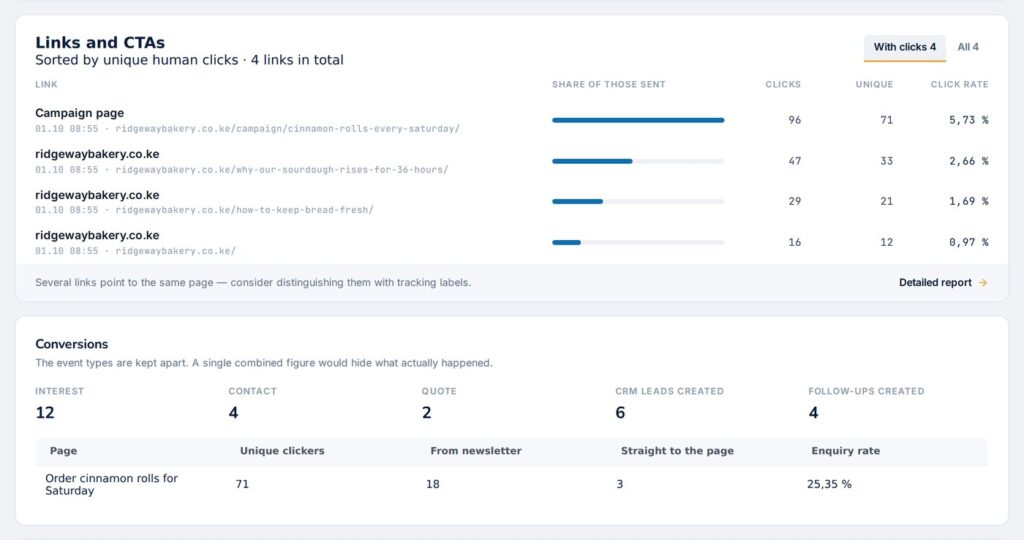
The enquiries land in the CRM with the campaign and the time recorded, and can be turned into a deal with a follow-up. You do not just see that the newsletter was opened, but which customers it actually brought in.
Working together, staying in control
A campaign can be shared with a colleague, either to read or to edit, and each website has its own senders and lists. All sendouts are kept in their own overview with time, list and sender, so it is easy to see what has gone out and what is ready to go.
If you would like to see how newsletters could work for your business, we are happy to show you.