Most of the websites we run are built on WordPress. It is a sound choice for a business website, but WordPress needs looking after, and its admin area was not designed for someone who just wants to publish a news story before lunch. That is why we have moved most of the everyday work into Corporate Panel. Many of our clients hardly ever log in to WordPress any more.
All your websites in one overview
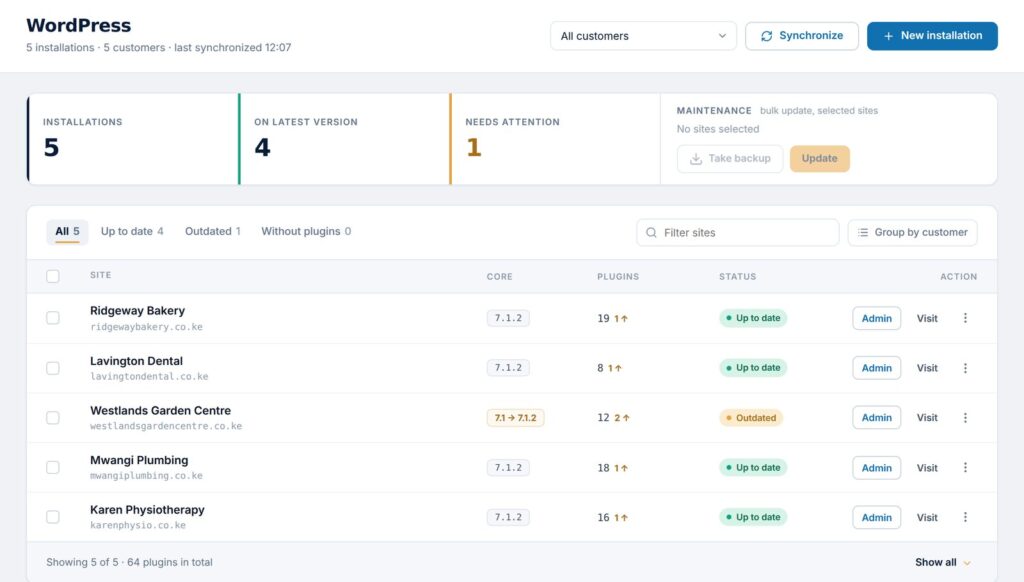
Under WordPress in the panel, all your websites are listed together. For each one you can see which version of WordPress it runs, how many plugins are installed and how many of them have an update waiting. A green badge means everything is current. An amber one means something needs attention.
At the top are three figures: how many installations you have, how many are on the latest version and how many need action. You can filter the list, pick out the sites that are behind, and group them by customer if you look after more than one business.
Updates, with a backup first
Updates are the job most people forget, and the one that tends to cause trouble when it is left too long. In the panel you tick the sites that are behind and click Update. WordPress is then updated on them one at a time, and the job stops at the first error so a problem does not spread to the rest.
Plugins are handled by the maintenance job, which can run on its own overnight. Before anything is changed, the database and the plugins are backed up. The site is then checked to make sure it responds as it should. Only then are the plugins updated, and the site is checked again afterwards. If it no longer responds as before, it is flagged for follow-up so nobody assumes all went well. Each site can be paused when something important is at stake. Some plugins, such as the page builder and the online shop, are never updated automatically, because they are the ones most likely to break something.
One click to the admin area, closed to everyone else
Now and then you still need to go into WordPress. You click Admin on the row and you are signed in without typing a username or password. At the same time, the normal WordPress login page is closed to anyone who does not come through the panel. The automated password guessing that every WordPress site is exposed to has nowhere to knock.
If you need a new website, you set it up from the same screen with New installation.
From topic to finished article
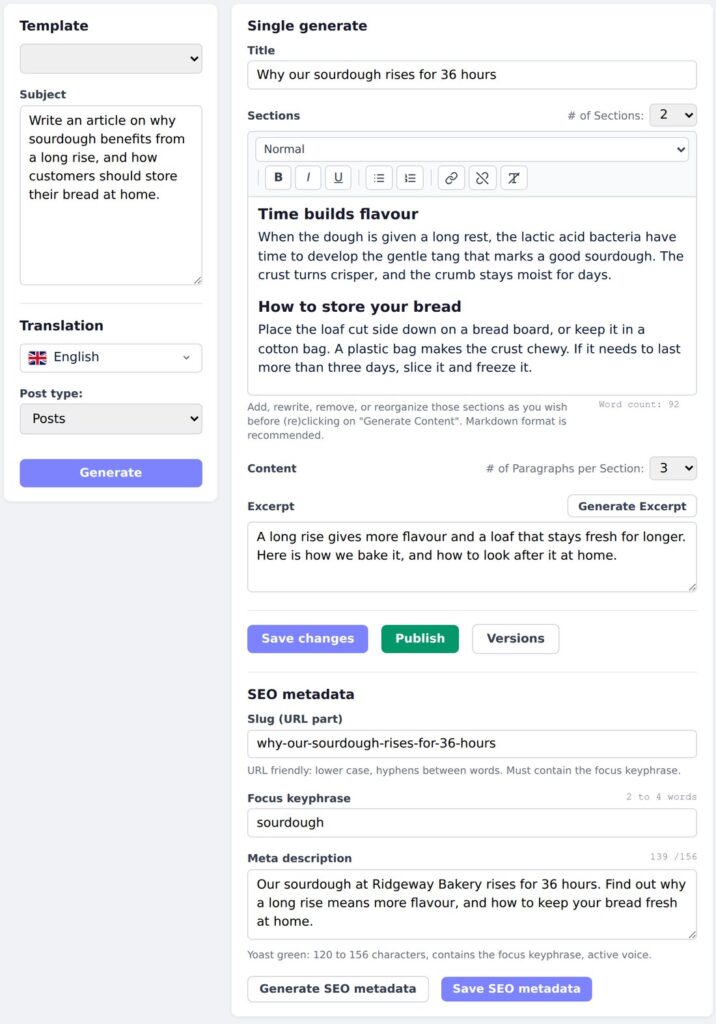
The biggest change is in how content is made. In AI Content you choose which website the article is for and write a few lines on what it should cover. You can also paste the link to a story you have read, and the panel fetches the text and uses it as the basis for a new article in your own words.
You decide the language, the number of sections and how many paragraphs each section should have, and whether it should be a post or a page. When you click Generate, AI writes the title, the subheadings and the body text. The text lands straight in an editor inside the panel, with bold and italic, lists, links and three levels of headings. This is where you change what you want worded differently, cut what does not fit and add what only you know. An excerpt can be written with a single click.
Ready for search the moment it is written
When the article has been generated, the search fields are already filled in. The panel suggests a short, clean web address, a focus keyphrase and a meta description, which is the text Google shows under the title in its results. A counter shows whether the description is the right length. The fields are passed straight to the SEO plugin on your website when you publish, so the article is ready for search from the first minute. You do not have to open WordPress to fill in the same fields again, and you will not discover three weeks later that they were never filled in.
The featured image is made in the editor
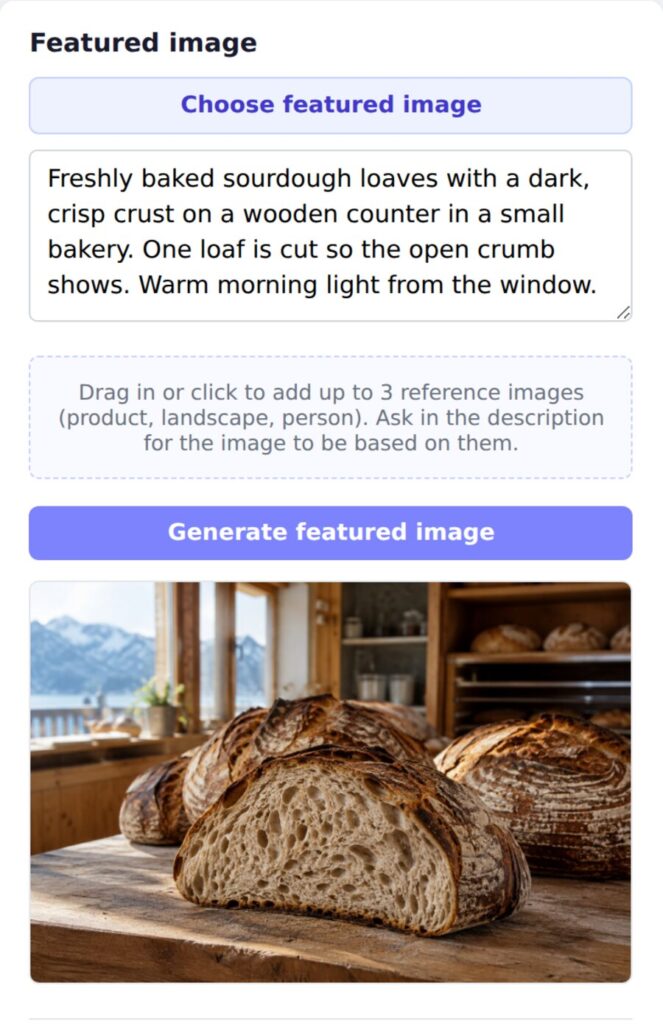
An article without an image is rarely read, and a stock photo looks like everyone else's. Next to the text there is a field for the featured image. You describe in plain words what the image should show and click Generate featured image. The image is ready in seconds and attached to the article.
If you have your own photos of a product, a shop or a person, you can add up to three reference images and ask for the new image to be based on them. You can also upload an image you already have, or pick one from the media library in the panel.
How the story looks when it is shared
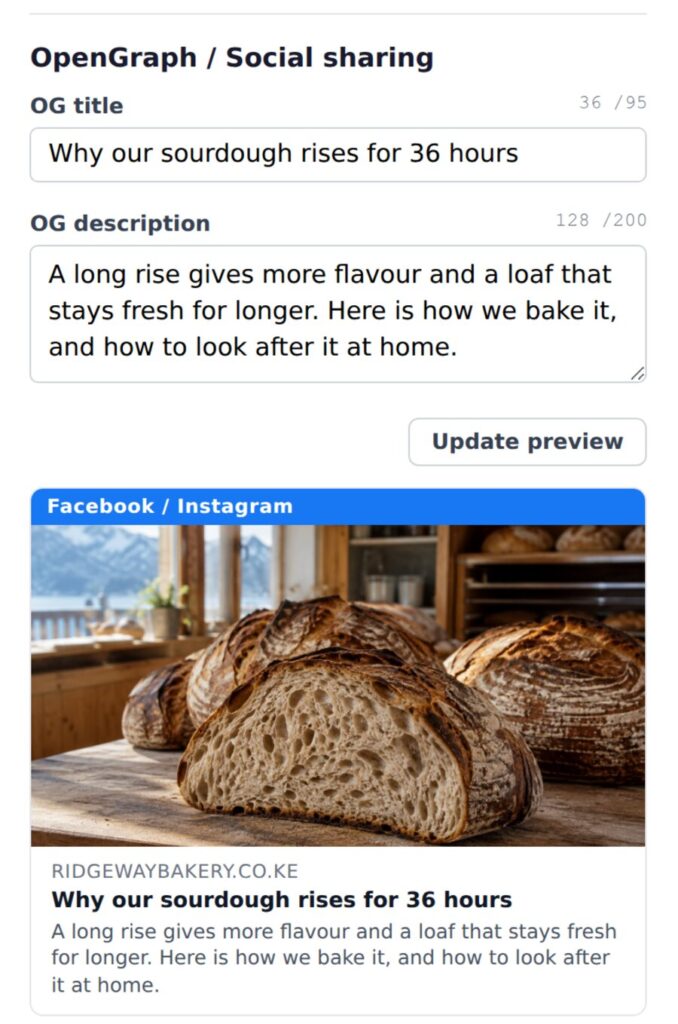
When someone shares the article on Facebook, LinkedIn or in a message, the service picks up an image, a title and a short description from the page. This is called OpenGraph, and it is often the first thing people see of your story. In the panel, the sharing title and description are set automatically from the article, and the featured image becomes the sharing image. There is no separate OG image to make. If you want a different text for social media, something more inviting than what suits a search result, you create it with Generate OG text.
Just below, you see a preview of how the story will appear on Facebook and X. If the title is too long or the image is badly cropped, you find out before the story goes out, not after it has been shared a hundred times.
Publish, unpublish and go back
When you are happy, you click Publish and the article is live on your website. You can save along the way without publishing, and you can take a story down later. Every save keeps the previous version, so a change you regret can be brought back without anyone digging through backups.
The same applies to articles that are already live. You open the list of stories on the website, choose the one you want to change, and edit the text, image and search fields in the same place you use to write something new.
If you would like to see how this works on your own website, we are happy to show you.